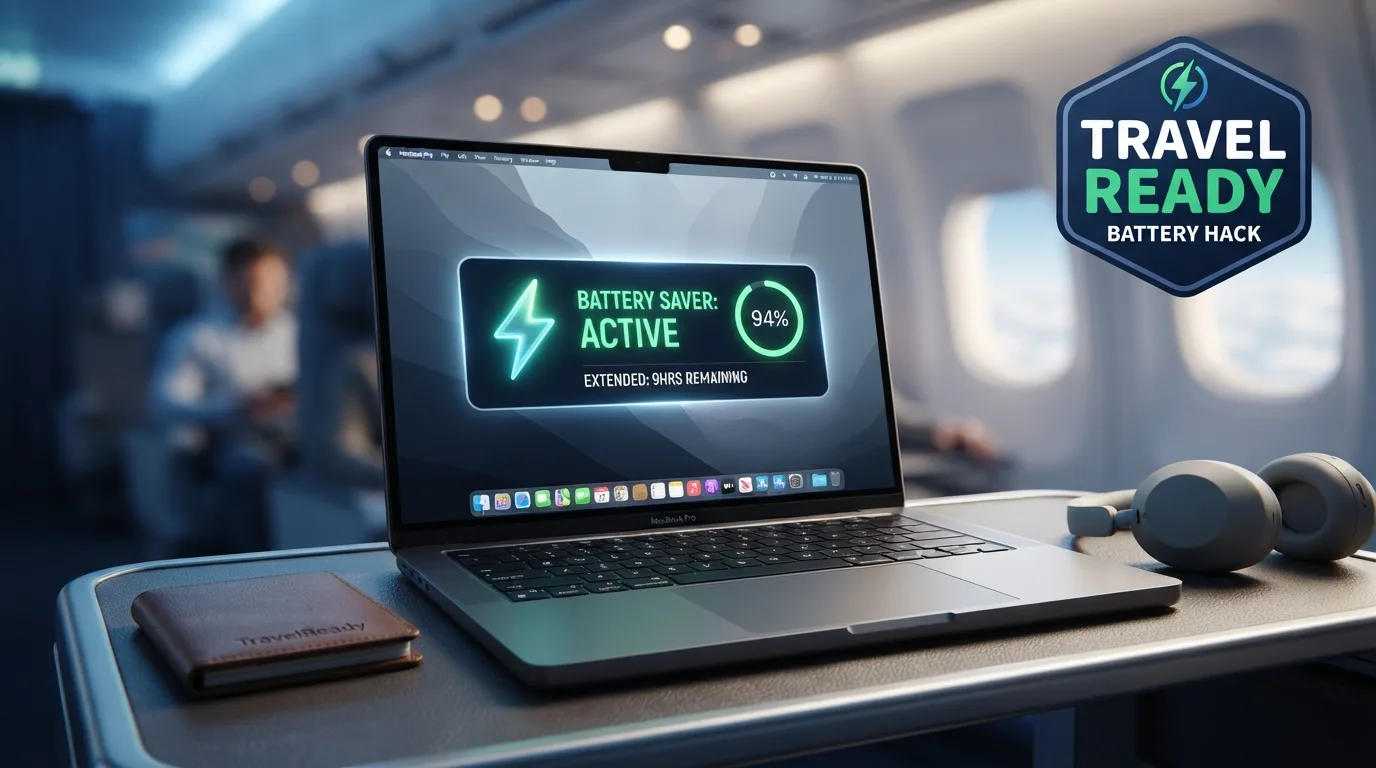
Simple laptop battery saving tips for frequent travelers spared me from total disaster during a eight-hour layover at O’Hare with zero open wall outlets. I was panicking while watching my battery indicator tick down to three percent with an urgent work deadline looming. You do not need to hunt aggressively for power hubs or travel with heavy external battery bricks to keep your machine alive.
1. Lower Display Brightness Levels
Your laptop screen consumes more battery power than almost any other internal component. Shifting your display brightness down to forty percent cuts power draw drastically without forcing you to strain your eyes inside dim airport terminals. I lowered my screen brightness during a cross-country flight and gained almost ninety minutes of extra work time.
Using manual brightness adjustments instead of automatic sensors prevents display fluctuations caused by changing cabin lighting. Dimming your screen also keeps visual privacy high when sitting close to neighbors in coach seating. Display power reduction stands out as the fastest way to save battery percentage points during long travel days.
2. Enable Built-In Battery Saver Modes

Both Windows and macOS feature built-in power conservation modes designed to minimize background power drain automatically. Activating these modes pauses automatic email syncing, reduces background app refreshes, and smooths out processor spikes. It handles system optimization effortlessly without requiring you to adjust dozens of hidden software settings manually.
Turning battery saver mode on as soon as you unplug from wall outlets preserves energy right from the start of your journey. The operating system handles background throttling quietly while you focus on typing documents or reading downloaded files. System power throttling keeps your laptop running efficiently throughout long delays.
3. Disconnect Unused USB Accessories
External mice, flash drives, external hard drives, and mobile phone charging cables draw power continuous energy straight from your laptop motherboard. Leaving an unused external drive plugged into your side USB port drains battery power even when you are not actively reading or writing files. Unplugging extra dongles preserves valuable battery capacity for actual processing work.
Relying on your laptop built-in trackpad instead of an external USB mouse saves noticeable amounts of power over several hours. Storing travel files on your internal solid-state drive eliminates the need to run external media off your ports. Peripheral power management ensures every drop of stored energy goes toward keeping your screen alive.
4. Simple Laptop Battery Saving Tips for Frequent Travelers: Turn Off Keyboard Backlighting
Lit keycaps look stylish in dim aircraft cabins, but those tiny LEDs drain battery reserves rapidly over long flights. Disabling keyboard backlighting completely frees up power that your processor can use for actual application work. When analyzing simple laptop battery saving tips for frequent travelers, turning off key backlighting delivers instant battery savings with zero performance downside.
Most laptops feature dedicated function keys that let you drop backlighting levels to zero in a second. You will quickly adapt to typing in low light using ambient screen glow instead. Keyboard backlight deactivation preserves battery life without compromising your work output.
5. Close Memory-Hungry Background Applications
Web browsers filled with dozens of active tabs consume massive amounts of system memory and force your processor to stay active. Closing background communication apps, cloud syncing utilities, and media streaming sites stops silent energy drain. Using your task manager to identify high-energy applications gives you instant control over power drain.
Freezing or closing background tabs before boarding your flight keeps your system running cool and efficient. I routinely close background cloud storage sync apps until I reconnect to hotel Wi-Fi networks landing. Background application closure prevents hidden software tasks from eating your battery reserves.
6. Switch to Airplane Mode When Offline
Your laptop Wi-Fi and Bluetooth chips waste energy constantly scanning for available wireless networks while traveling through airports or flying at altitude. Switching your device into full Airplane Mode cuts off these radio transmitters, stopping unnecessary network searches entirely. You can easily keep working on offline documents, spreadsheets, or local media without draining your battery.
Turning wireless radios off also prevents your laptop from constantly handshaking with weak in-flight Wi-Fi signals. IMO, toggling Airplane Mode on remains the easiest habit for offline travel work. Wireless radio deactivation extends your battery runtime significantly while working offline thousands of feet up.
7. Adjust Sleep and Display Timeout Intervals
Leaving your computer screen awake while stepping away to grab a coffee or check flight boards wastes precious power. Adjusting your display sleep settings to turn off after two minutes of inactivity prevents your battery from draining while idle. Shortening idle timeout windows ensures no energy goes to waste when you step away from your gate seat.
Setting your power button to hibernate your system instead of standard sleep mode prevents background battery drain during long layovers. Hibernating saves your open work state to your hard drive and shuts down internal power completely. Idle timeout optimization protects your charge levels during travel interruptions.
8. Pause Automatic Cloud File Syncing

Cloud storage services like Dropbox, OneDrive, and Google Drive constantly scan local folders to sync changes to remote servers. Running active file synchronization over unstable airport Wi-Fi forces your laptop wireless card to operate at maximum transmission power. Pausing sync operations until you settle into your hotel preserves battery life and reduces internal heat.
Most cloud storage icons sitting in your system tray let you pause syncing for two, four, or eight hours with a quick right-click. This prevents your laptop from attempting to upload large presentation files over weak public networks. Cloud sync pausing keeps your laptop running cool without consuming extra processing power.
9. Use Integrated Video Players for Media
Streaming movies over web browsers uses far more processing power than playing locally saved MP4 files through native media players. Web video decoding relies heavily on browser software layers that tax your graphics chip and drain battery capacity fast. Downloading media files directly to your internal storage before departure lets you watch movies using low-power native software players.
Native video apps on Windows and macOS feature hardware acceleration optimized specifically for battery efficiency. You get smooth playback without spinning internal cooling fans or burning through charge levels. Local media decoding lets you enjoy entertainment on long flights without killing your battery before landing.
10. Keep Your Laptop Cool on Soft Surfaces
Working with your laptop sitting directly on soft blankets, flight pillows, or plush clothing blocks bottom cooling vents completely. Trapped heat forces internal fans to run at maximum speed, consuming high amounts of battery power while throttling processor speeds. Keeping your laptop resting on a flat, hard surface like a tray table allows proper airflow.
Proper ventilation keeps internal temperatures low, preventing battery drain caused by struggling cooling fans. If you must work on your lap, using a thin hard folder under your laptop keeps air intakes unobstructed. Optimal airflow ventilation preserves battery efficiency while keeping your laptop running at peak speeds.
Frequently Asked Questions
Do simple laptop battery saving tips for frequent travelers affect performance?
Enabling battery saver features may slightly lower performance for heavy video editing or gaming tasks. However, for everyday travel activities like writing documents, checking offline spreadsheets, or reading PDFs, you will notice zero functional speed drop. The energy savings easily outweigh minor performance limits during long travel days.
Should I leave my laptop plugged in while waiting at airport gates?
Yes, keeping your laptop plugged into wall outlets whenever available tops off your battery before flight boarding. Modern laptops use smart charging circuits that automatically stop charging once full, preventing battery overcharging. Charging up whenever you spot an open outlet ensures maximum battery capacity before flying.
Does dark mode actually save battery life on laptop screens?
Dark mode saves battery power on laptops equipped with OLED screens because dark pixels turn off completely. On traditional LCD screens with backlights, dark mode offers negligible battery savings because the backlight remains lit. Switching to dark themes still reduces eye strain inside dark aircraft cabins regardless of display technology.
Is it better to shut down or hibernate a laptop during long layovers?
Hibernating or shutting down your laptop is far better than standard sleep mode during layovers. Sleep mode keeps internal RAM powered, slowly draining your battery over several hours inside your bag. Hibernation saves open files to your solid-state drive and powers off completely, preserving your battery level.
Can external power banks charge modern laptops on flights?
Yes, portable power banks with high-wattage Power Delivery support can recharge modern laptops over USB-C cables. Ensure your portable charger outputs at least 45 to 65 watts to charge laptops effectively. Carrying a TSA-compliant power bank provides a reliable power backup when gate outlets are entirely taken.
Conclusion
Extending your laptop battery runtime requires adjusting simple power settings before embarking on long trips. Combining display dimming, battery saver modes, and closing background tabs ensures your machine stays powered through delays. Which battery-saving tweak are you going to enable on your next trip?